- Overview
- Accessing Menus & Navigation
- Creating & Editing Menus
- Adding Links to a Menu
- Link Types Explained
- Menu Structure & Organization
- Understanding Max Dropdown Levels
- Conclusion
Overview
This article explains how to create, edit, and organize menus within your store. You’ll learn how to add different link types, structure menu hierarchies, and manage dropdown levels so your storefront navigation displays exactly how you want.
Accessing Menus & Navigation
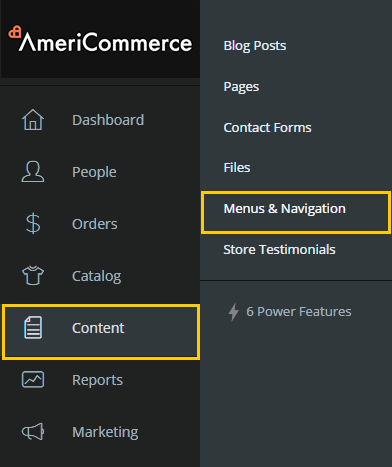
Menus control all navigational links on your site, including top navigation, sidebar menus, footer links, and sub-menus. To access them, go to:
Content > Menus & Navigation
Creating & Editing Menus
- To create a new menu, select the New button in the top-right corner.
- To edit an existing menu, select the Edit icon (the pencil icon) next to the menu you want to modify.
When creating a new menu, you will need to build out the links customers will use to navigate your site.
Adding Links to a Menu
- Select the Add New Link button.

After selecting this option, you will see a panel containing link type settings.

Link Types Explained
The table below summarizes each link type and its purpose:
| Link Type | Description |
|---|---|
| Blog | Links to your blog roll page. Supports multiple blogs and allows selection from available blog lists. |
| Blog Category | Displays blog posts using the selected category. |
| Product Category | Links to a specific product category page. Displays all products inside the selected category. |
| Content Page | Links to a page created under Content > Pages. A dropdown appears for selecting the page. |
| External URL | Links to any external webpage using a full URL (e.g., http://www.americommerce.com). |
| Product | Direct link to a specific product. Begin typing a product name to select from search results. |
| Storefront Page | Links to prebuilt store pages such as Home, Category, My Account, Wishlist, Checkout, and more. |
Menu Structure & Organization
You can drag menu items using the four-directional arrow icon to reorder them.
In vertical menus, links appear top-to-bottom; in horizontal menus, they appear left-to-right.
Dragging an item underneath and slightly to the right of another item creates a sub-navigation link (submenu). These can be nested multiple levels deep.
Tip: To create a non-clickable placeholder (e.g., “Company Info”):
- Set Display Text to your desired label
- Set Type to External URL
- Set URL to
#

Here is an example of how the menu layout appears on the storefront:

Understanding Max Dropdown Levels
Certain link types (Blog, Blog Category, Product Category) allow you to set a Max Dropdown Levels value. This controls how many submenu levels appear when hovering over that menu option.
Example dropdown level definition:
- Company Info = level 1
- About Us (appears on hover under Company Info) = level 2
Here is how a menu looks when Max Dropdown Levels = 2:

And here is how it looks when Max Dropdown Levels = 1 (note that deeper levels no longer appear):

This setting is particularly useful for stores with large product catalogs to prevent overly large dropdown menus.
Conclusion
Now that you know how to build and organize menus, you can add them to your theme to control your site's navigation. For details on configuring your top navigation bar, see: Change The Top Navigation Links
If unwanted categories appear or link to 404 pages, make sure your active catalog is correct: Check Active Catalog Configuration